Label placement
2D label placement for engineering drawings: given a set of labels, each belonging to a leader and
keeping clear of blocked regions, Arranger.Run works out how far to move each label so that none
overlaps another or encroaches on the blocked regions.
It depends on AutoCAD and Tekla for nothing. The geometry it works in is geometry in the
plane, and its own types live in the GeometryHelper.Arranging namespace.
Visual Examples
AutoCAD Integration
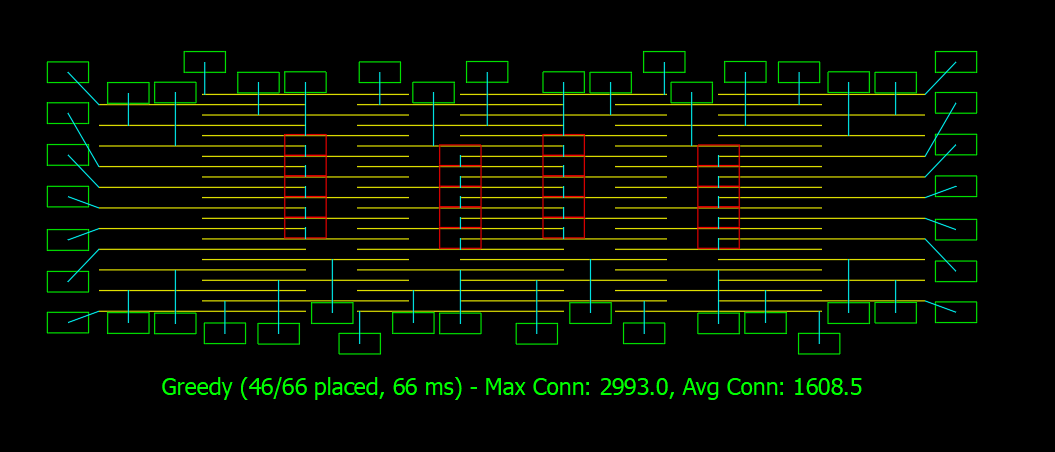
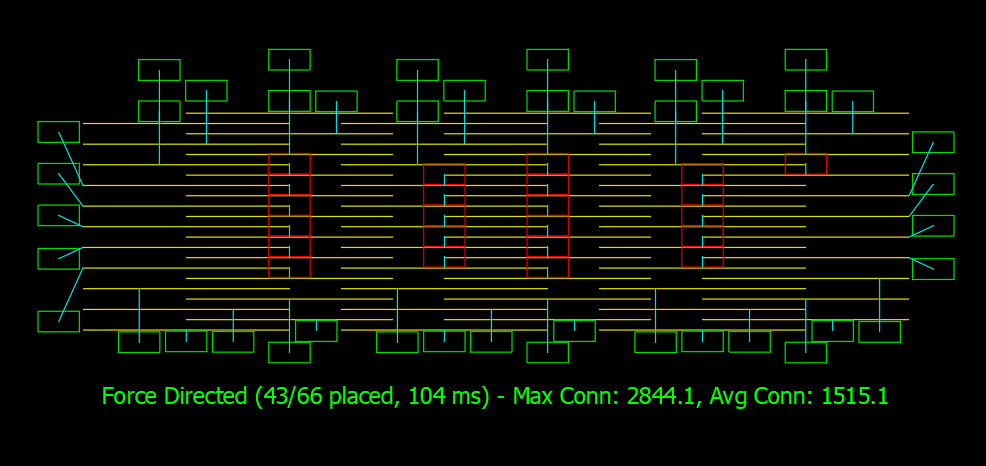
Here are some examples of labels arranged inside AutoCAD to avoid overlaps and blocked regions:
| Greedy | Force Directed |
|---|---|
 |
 |
Tekla Structures Integration
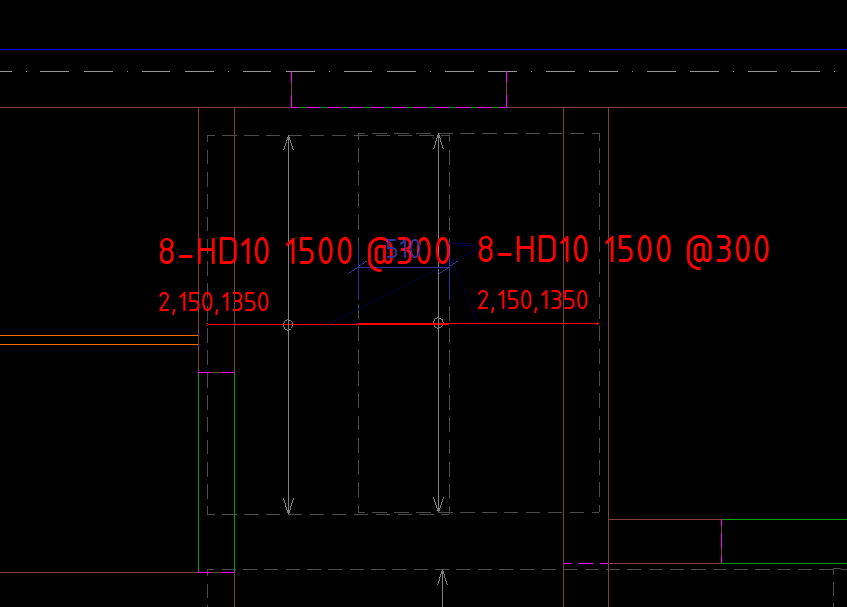
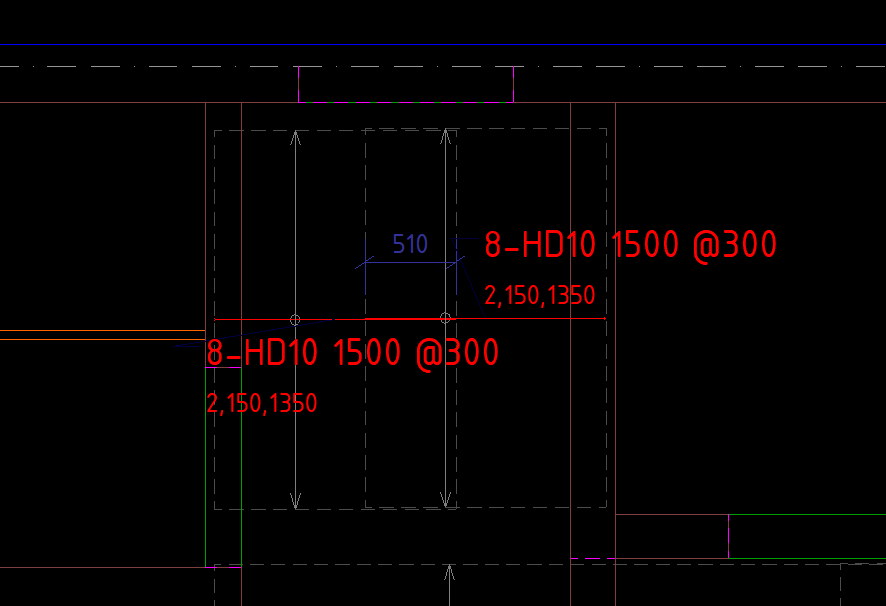
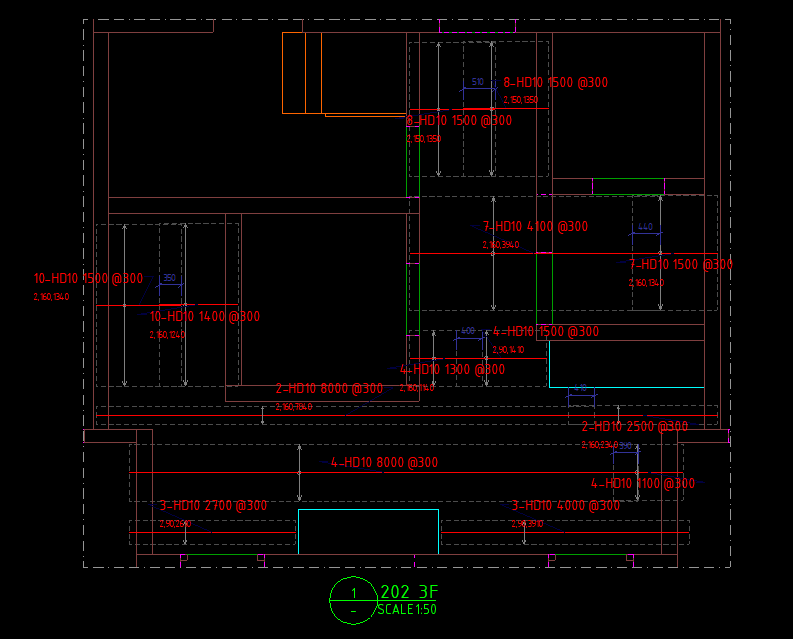
Here is an example of reinforcement marks before and after arrangement:
| Before Arrangement | After Arrangement |
|---|---|
 |
 |
| Arranged Marks Avoiding Dimension Obstacles |
|---|
 |
Quick Start
var leader = new GeoLine2(0.0, 0.0, 2000.0, 0.0);

var items = new List<ArrangeItem>
{
    new ArrangeItem
    {
        // The label's box: centre, width, height, rotation angle (radians, counter-clockwise)
        Box    = new GeoRectangle2(new GeoPoint2(1000.0, 0.0), 2000.0, 1000.0),
        // The leader: the candidate positions spread out from its midpoint
        Leader = leader,
        // The least gap between the label's edge and the leader, for this label alone (default 50)
        Offset = 50.0,
        // What the label must not overlap
        BlockPolygons = new List<GeoPolygon2>(),
        BlockLines    = new List<GeoLine2>()
    }
};

// One result for each item, in the same order. The items themselves are left as they were given.
ArrangeResult[] results = Arranger.Run(items);

for (int i = 0; i < items.Count; i++)
{
    GeoPoint2 newCentre = items[i].Box.Center + results[i].Translation;
    bool placed = results[i].Placed; // false: no clear place was found, and the label overlaps something
}
Arranger.Run only reads the items. What becomes of each comes back as an ArrangeResult: Translation,
how far to move the label, and Placed, whether it ends up clear of every other label and of every block.
The same list can therefore be run again, with other options or on another thread, to compare. A null entry
is passed over and answered with default: not moved, not placed.
A run goes over the labels twice. The first pass places every label under every constraint. The labels it
leaves overlapping something are tried once more with the block lines lifted, keeping clear of the labels
already placed. Placed is judged afterwards, on the final layout as a whole, so a label that another one fell
back onto is not reported clear.
To change the algorithm or fine-tune parameters, pass ArrangeOptions:
var options = new ArrangeOptions
{
    Algorithm           = ArrangeAlgorithmType.BoundedBacktracking,
    RowGap              = 20.0,
    PerpendicularLevels = 3
};

ArrangeResult[] results = Arranger.Run(items, options);
ArrangeOptions is the shared configuration for the entire list. Offset is set per ArrangeItem because each label may require a different offset:
var smallTextLabel = new ArrangeItem
{
    Box    = new GeoRectangle2(new GeoPoint2(1000.0, 0.0), 2000.0, 1000.0),
    Leader = leader,
    Offset = 50.0   // small text, closely sticks to the leader
};

var largeTextLabel = new ArrangeItem
{
    Box    = new GeoRectangle2(new GeoPoint2(1000.0, 0.0), 4000.0, 2000.0),
    Leader = leader,
    Offset = 200.0  // large text, must move further away
};

ArrangeResult[] results = Arranger.Run(new List<ArrangeItem> { smallTextLabel, largeTextLabel }, options);
A label can stand one gap off above its leader and another below it. OffsetTop is the gap on the side of the
leader that faces up in the drawing and OffsetBottom the gap on the side that faces down, 50 each unless set.
Which side faces up does not depend on which way the leader was drawn, and a vertical leader, to within the angle
of the options' Tolerance, has its top on the left, where the text of a vertical dimension stands. Every gap has
to be a finite number:
var dimensionText = new ArrangeItem
{
    Box          = new GeoRectangle2(new GeoPoint2(1000.0, 0.0), 2000.0, 1000.0),
    Leader       = leader,
    OffsetTop    = 20.0,   // above the leader: close to it
    OffsetBottom = 300.0   // below it: well clear
};
Offset sets both sides at once. It only sets, holding nothing of its own, so it cannot be read, and set after a
side it overwrites that side too: new ArrangeItem { Offset = 50.0, OffsetTop = 20.0 } stands 20 off above and
50 below, new ArrangeItem { OffsetTop = 20.0, Offset = 50.0 } 50 off on both sides.
Side keeps a label to one side of its leader: ArrangeSide.Top, the side that faces up, the left of a vertical
leader; ArrangeSide.Bottom, the side that faces down; or ArrangeSide.Both, the default, either. Kept to one
side, the label is tried on the rows of that side alone, and with no free place there it is left on the first of
them and reported not Placed, however free the other side:
var levelMark = new ArrangeItem
{
    Box       = new GeoRectangle2(new GeoPoint2(1000.0, 0.0), 2000.0, 1000.0),
    Leader    = leader,
    OffsetTop = 20.0,
    Side      = ArrangeSide.Top   // above the leader, never below it
};
A gap as wide as it goes on the other side is not the same thing: it only makes that side the last one tried, and the label still goes there when the near side is full.
Candidate Positions Generation
All 5 algorithms share the same set of discrete candidate positions, expanding from the midpoint of the leader;
ArrangeItem.GetPlacePoints(options) lists them:
- Perpendicular Translation — each level in
PerpendicularLevelscreates a row of labels on either side of the leader, or on the one sideSidekeeps the label to. The first row on each side lies half the label height plus the gap of that side off the leader:OffsetTopabove,OffsetBottombelow. Each subsequent level adds the label height plusRowGap. - Longitudinal Sliding — in each row, the label slides parallel to the leader in both directions, up to a maximum of half the leader's length plus
LongitudinalOvershootRatiotimes the label width.
The rows of both sides come nearest first, each straight across the middle of the leader and then a step back
and a step forward along it in turn. Two rows as far off, one on each side, as every pair is when both sides have
the same gap, are tried together, place by place. A label has no more than MaximumCandidates candidates in all.
The algorithms only differ in how they select from this candidate set.
Five Algorithms
ArrangeAlgorithmType |
Selection Strategy | Trade-off |
|---|---|---|
Greedy (default) |
Sequentially places labels, prioritizing the most constrained ones; selects the most open spot in the first group of free candidates, the wider gap of a side not counted as open | Fastest, reproducible results, but prone to local optima |
BoundedBacktracking |
Same as Greedy, but tries the nearest free spot first and backtracks when subsequent labels are stuck, bounded by MaxBacktrackSteps |
Higher clean placement rate, slower on crowded drawings |
SimulatedAnnealing |
Global optimization based on a collision-penalty energy function, gradually cooling down | Best for extremely crowded drawings, CPU-heavy |
ForceDirected |
Simulates spring and repulsive forces, then maps to the nearest discrete candidate | Distributes labels evenly and naturally |
ConstraintSatisfaction |
CSP with MRV heuristic and forward checking | Most rigorous, potential combinatorial explosion with large number of labels |
BoundedBacktracking and ConstraintSatisfaction automatically fallback to Greedy if no collision-free solution is found, or their steps back run out, ensuring every label always has a display position.
SimulatedAnnealing uses a fixed seed, so its results are reproducible between runs.
Parameters of each ArrangeItem
| Parameter | Default | Meaning |
|---|---|---|
Box |
— | The label's box, the rectangle that is moved |
Leader |
— | The segment the label belongs to; its midpoint is the origin of the candidate positions |
Offset |
— | Sets OffsetTop and OffsetBottom both at once; it can be set, not read |
OffsetTop |
50.0 | The least gap between the label's edge and the leader on the side that faces up in the drawing; the left of a vertical leader; a finite number |
OffsetBottom |
50.0 | The least gap on the side that faces down; the right of a vertical leader; a finite number |
Side |
Both |
Which side of the leader the label may stand on: Both, Top (the left of a vertical leader) or Bottom |
BlockPolygons |
empty | Regions the label must not overlap |
BlockLines |
empty | Segments the label must not overlap; lifted in the second pass, and a label left across one is not Placed |
The blocks of all the items are gathered into one set before any label is placed, so every label keeps clear of the blocks of every item, and a block given to many items is tested once.
Main Parameters of ArrangeOptions
| Parameter | Default | Meaning |
|---|---|---|
Algorithm |
Greedy |
Algorithm to use |
RowGap |
20.0 | Clearance between two consecutive rows of labels |
PerpendicularLevels |
3 | Number of perpendicular fallback levels to test on each side |
LongitudinalOvershootRatio |
0.75 | Ratio of label width allowed to overshoot beyond the two endpoints of the guide segment |
MinimumBoxSize |
10.0 | Labels smaller than this size are ignored |
MinimumMoveDistance |
0.1 | Translations smaller than this threshold are rounded to zero |
NeighbourMargin |
50.0 | Expanded margin when filtering nearby obstacles |
MaximumCandidates |
10000 | The most candidate positions a label has |
PlaceMostConstrainedFirst |
true | Place labels with fewer options first |
PlaceFromInsideOut |
true | Prioritize labels close to the area centroid |
LookAheadCandidates |
3 | Number of free positions considered before selection |
MaxBacktrackSteps |
1000 | The most steps back BoundedBacktracking and ConstraintSatisfaction take before falling back to Greedy; placing a label takes none |
AnnealingInitialTemperature |
100.0 | Initial temperature for the Simulated Annealing algorithm |
AnnealingCoolingRate |
0.95 | Cooling rate for the Simulated Annealing algorithm |
ForceIterations |
100 | Number of force simulation iterations for the Force-Directed algorithm |
Tolerance |
Tolerance.Global |
Tolerance for geometric comparisons; Tolerance.Global as it stands when the options are made |
Default values are in millimeters, matching conventional structural drawings.
Running inside AutoCAD
GeometryHelper.ArrangeAlgorithms.CadTest builds a DLL file to be loaded into AutoCAD:
dotnet build examples/GeometryHelper.ArrangeAlgorithms.CadTest/GeometryHelper.ArrangeAlgorithms.CadTest.csproj
The output is located at examples/GeometryHelper.ArrangeAlgorithms.CadTest/bin/Debug/net48/GeometryHelper.ArrangeAlgorithms.CadTest.dll. Load this file into AutoCAD using the NETLOAD command, then run one of the following commands: T1_Greedy, T1_BoundedBacktracking, T1_SimulatedAnnealing, T1_ForceDirected, T1_ConstraintSatisfaction. Select LINE or LWPOLYLINE objects, and the plugin will draw the label box before and after arrangement, along with statistics.
The project compiles against three AutoCAD assemblies — accoremgd, acdbmgd, acmgd — committed under src/GeometryHelper.CadConvert/Lib and referenced from there by relative path, so no AutoCAD installation is needed to build. Loading the result still needs AutoCAD, which supplies those assemblies at run time.
Running inside Tekla Structures
GeometryHelper.ArrangeAlgorithms.TeklaTest is a console application that connects to the active Tekla Structures model and drawing to arrange reinforcement marks.
To build and run:
- Open Tekla Structures and open a drawing with some reinforcement marks and dimensions selected.
- Build the project:
dotnet build examples/GeometryHelper.ArrangeAlgorithms.TeklaTest/GeometryHelper.ArrangeAlgorithms.TeklaTest.csproj - Run the compiled executable:
examples/GeometryHelper.ArrangeAlgorithms.TeklaTest/bin/Debug/net48/GeometryHelper.ArrangeAlgorithms.TeklaTest.exe
Licence
MIT.